


Projector - TV Cast, HD Mirror
4.3212.00 Reviews
App Specs
- Version
- 6.0.1
- Updated On
- License
- Free
- Downloads
- 5,000,000+
- Developer
- One Music Player
- Categories
- Productivity
- Platform
- Android
Screenshots
 Analysis by AppCompare
For me, a phone-to-TV mirroring app earns its place when it makes sharing something on a larger screen less fiddly than passing a phone around. Projector - TV Cast, HD Mirror is built around that simple idea: show phone content on a television or another compatible screen. The appeal is easy to understand, but the experience depends on more than the app itself. Your phone, receiving device, wireless network, and the kind of content you want to show all matter.
I’d think of it as a screen-casting utility rather than a replacement for a TV’s own streaming apps. It can be useful when the thing you want to display is already on your phone, or when you want other people to see a photo, a page, or an app without crowding around a small screen. It is less compelling if your only aim is to watch a service that already has a reliable app on your television.
What to expect from the connection
The app is offered by One Music Player as a free productivity app. It has a 4.4 average from around 23,000 ratings, and it has passed five million installs. That gives a prospective user a sense of its reach, though popularity alone cannot promise that a particular phone and TV will work smoothly together. I’d treat the first connection as a compatibility check, not assume every screen in the home will behave the same way.
Mirroring is also different from simply sending a video to a TV. With mirroring, the phone remains part of the viewing chain: what appears on its screen is what the larger display is being asked to show. That can be convenient for material without a dedicated TV app, but it can make the phone less comfortable to use for anything else while the display is active. If you want to keep browsing privately while a show plays, a TV’s own streaming app or a cast option built into the video service is usually the better fit.
When it helps in everyday use
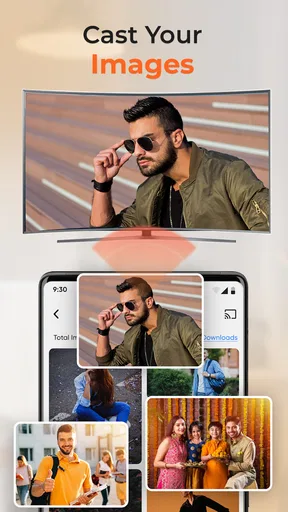
A practical use is sharing a batch of holiday photos with family. Instead of handing the phone around, I’d connect it to the living-room screen, open the pictures, and let everyone look together. For a smoother session, I’d prepare the album first, silence interruptions if appropriate, and keep the phone close enough to stay connected to the home network. Those small steps matter more than they might during a quick test.
It can also be handy for a short presentation, a recipe you want to read from across the kitchen, or a web page that is easier to discuss when everyone can see it. These are situations where mirroring the whole screen makes sense. For a long film, on the other hand, I would first try the streaming service directly on the TV or use its own casting control. That approach avoids keeping the phone tied up and can be more predictable for protected video.
Speed, stability, and the trade-offs
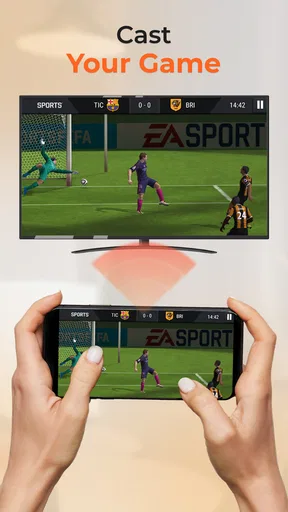
I would not judge performance by the word “HD” alone. The useful question is whether the picture and response feel good enough for the task. A still photo or a slide can tolerate a little delay; a fast game or a video with quick movement makes lag and uneven playback much easier to notice. The earlier experience described here was stable with minimal lag, but that should not be read as a guarantee across every network, device, or room.
Worth Reading Before You Choose

EA SPORTS FC Mobile 26 Is a Bigger Football Game, but It Takes Time

Flipboard Shows What News Apps Must Do Beyond the Feed

Switching to Android Auto Means Rethinking Your Driving Routine

Google Calendar Makes a Crowded Week Easier to Manage

Ludo King Makes the Most of the Minutes Between Plans

Baby Panda World Brings Quick Play to Modern Phones, but Its Game Library Feels Busy
Wireless conditions are the main practical variable to watch. If the picture stutters, drops in quality, or takes time to respond, I’d first reduce distance from the router and avoid placing the phone where the signal is weak. I’d also close unnecessary activity on the phone before a longer session. These are sensible troubleshooting steps, not a promise that every interruption can be fixed from the app.
Long sessions have another trade-off: mirroring can keep the phone actively involved, and battery use may become noticeable. The published experience found consumption on the high side, so I would start a long viewing session with a well-charged phone and a convenient power source. That is especially worth considering if you are showing photos at a gathering or following a recipe for an extended stretch.
Getting Started with Projector - TV Cast
First things first, setting up Projector - TV Cast, HD Mirror was a breeze. All you need is your smartphone and a compatible TV or streaming device. After a quick download from the App Store or Google Play, you’ll be prompted to ensure both devices are connected to the same Wi-Fi network. This is crucial, as it’s the bridge between your phone and TV.
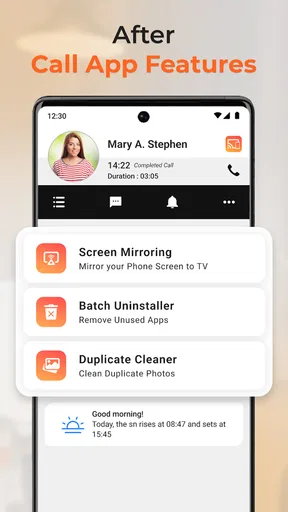
Once you've got that sorted, the app interface is clean and straightforward. You’re greeted with a simple home screen with clear options to start mirroring or casting. No complicated menus, just straight to the point.
Using the App: A Seamless Experience
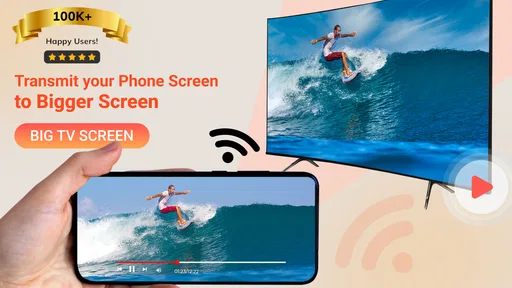
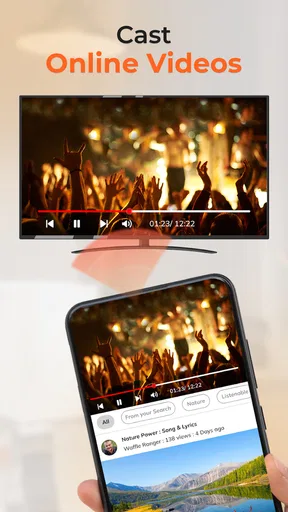
The main function of this app is to mirror your device’s screen onto your TV. Whether it’s videos, photos, or even apps, you name it, it can be mirrored. I tested it with a variety of content, from Netflix shows to gaming apps, and the connection was impressively stable with minimal lag.
Another feature that caught my attention was the ability to customize screen settings. You can adjust the resolution to suit your TV’s capabilities, which is a nifty feature if you're dealing with an older model. Plus, the app supports HD quality, so you’re not missing out on any detail.
What Makes It Stand Out?
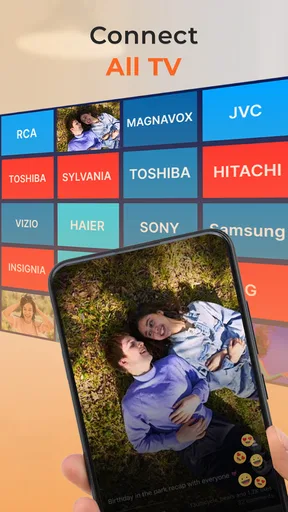
One of the standout features of Projector - TV Cast, HD Mirror is its versatility. It supports various streaming devices, including Chromecast, Roku, and Amazon Fire Stick. This means you’re not limited to just one type of TV or device, which is a huge plus if you’ve got multiple setups at home.
Moreover, I appreciated the real-time updates the app provides. If there’s any interruption in the connection, you’ll get a quick notification. It’s a small detail, but it makes a big difference in maintaining a seamless experience.
Choosing the right way to watch
The choice between this app, built-in screen mirroring, and a service’s own cast button comes down to what you need to put on the television. I’d try the phone’s native mirroring first if it already works with your screen, since that avoids adding another app to the process. This app is more useful when you want a dedicated route to a compatible receiver or want its available screen controls in one place.
For video subscriptions, the TV app is often the sensible starting point. It can keep playback on the television rather than asking the phone to mirror every screen change. For photos, documents, or an app that lacks a TV version, full-screen mirroring is the more flexible choice. The trade-off is that whatever is visible on the phone may also be visible on the big screen, so I’d close private tabs and notifications before presenting.
There is a small but important distinction between getting connected and getting a good result. A successful connection only says the devices can communicate; it does not guarantee that every video will play cleanly or that a game will feel responsive. I’d test the exact activity I plan to use before guests arrive or before relying on it in a meeting. A quick photo or menu test is not a meaningful test of fast-moving video.
Compatibility and sensible preparation
The app is aimed at people with a compatible TV or streaming receiver, rather than serving as a projector that creates an image by itself. The phone sends its display to another screen; it does not replace the hardware needed to show that image. Before settling in, I’d check that the intended receiver is available and that both devices can join the same wireless network. In a home with separate guest and private networks, putting the phone and receiver on different ones can make discovery harder.
Resolution controls are useful when the receiving television is older or the wireless connection is struggling. I would not automatically choose the highest setting just because it is available: the best choice is the one that stays clear without making playback choppy. For a static recipe or family album, a slightly softer image may be a worthwhile compromise if it keeps the session steady. For small text, I’d prioritize legibility and test the result from the distance where people will actually be watching.
Another practical tip is to plan the phone’s role before casting. If you need it to remain available for messages or other tasks, mirroring may be awkward because the displayed screen follows the phone. If the phone is only acting as the source, keep it awake and positioned where its network connection is reliable, and have a charger nearby for extended use. That simple planning can prevent a useful short demo from turning into an inconvenient long session.
Who is likely to enjoy it
I see the strongest fit for someone who often wants to share phone-based material on a television: parents showing pictures, students reviewing visual notes with others, or anyone who wants to put a page or app on a larger display. It can also be a practical backup when a TV does not have the particular app or content you need. The key is being comfortable with the phone acting as the source rather than expecting a hands-off television player.
I would skip it if you mainly want a low-effort way to watch subscription films, need precise controls for gaming, or expect the phone to stay free for unrelated tasks while content continues on the TV. A native TV app, built-in casting function, or a wired presentation setup may suit those jobs better. Those alternatives are not universally superior; they simply reduce the dependence on continuous screen mirroring in the situations where that dependence is inconvenient.
The app is free to download, is rated for Everyone, and its current version is 6.0.1, with Android support starting at version 6.0. Optional in-app purchases range from $0.99 to $99.99 per item, so I’d check the purchase details shown in the app before paying for anything. The age rating makes it broadly accessible, but it does not change the practical need to check what is being mirrored before showing a phone screen to a group.
Room for Improvement
While the app mostly delivers a solid performance, there are a couple of areas where it could step up its game. For instance, during my time with the app, I noticed that battery consumption was on the higher side. If you’re planning to binge-watch an entire series, you might need to keep your phone plugged in.
Also, while the app supports HD quality, the experience can vary depending on your Wi-Fi strength. A weaker connection might result in occasional buffering or dips in quality. So, having a strong Wi-Fi signal is key to getting the best out of this app.
Recovering from a rough session
If the connection falters, I would avoid changing several settings at once. First check that the phone and receiver are still on the same network, then move closer to the router and try reconnecting. If a particular video looks poor while photos remain clear, that points to a different workload rather than proving the whole connection is unusable. Testing another kind of content helps separate a general connection problem from a task that is simply demanding.
For a one-off interruption, a restart of the connection may be all the session needs. If it keeps happening, I’d stop and decide whether the task is better handled by a TV app or the device’s built-in casting feature instead of repeatedly troubleshooting. That is a useful boundary: a quick share should save time, not become the main event. Notifications about interruptions can help you notice a dropped link, but they cannot make a weak wireless signal stronger.
Final Thoughts
All in all, Projector - TV Cast, HD Mirror is a handy tool that transforms your phone into a powerful media hub. It’s perfect for movie nights, photo slideshows, or even just browsing apps on a bigger screen. Sure, there are a few kinks to iron out, but nothing that’s a deal-breaker.
If you’re keen on exploring the app, you can download it from the App Store or Google Play. Just make sure your Wi-Fi is up to the task, and you’re all set for a seamless mirroring experience.
My overall recommendation is conditional but positive: I’d keep it in mind for sharing things that live on a phone, especially when several people need to see them together. I would not make it my default for every video or treat smooth performance as guaranteed, because network quality and the receiving device shape the result. Used for the right job, it can be a convenient bridge between a small screen and a larger one; used for the wrong job, the phone’s battery, availability, and connection become needless complications.
Pros
- Easy to connect with multiple devices.
- Supports a wide range of video formats.
- Offers high-quality streaming with minimal lag.
- User-friendly interface and setup process.
- Allows screen mirroring for both Android and iOS.
Cons
- Occasional connectivity issues reported.
- Ads can be intrusive during usage.
- Limited free features available.
- Requires stable internet for optimal performance.
- Some devices may experience compatibility issues.
FAQs for Projector - TV Cast, HD Mirror
What devices are compatible with Projector - TV Cast, HD Mirror?
Projector - TV Cast, HD Mirror is compatible with a wide range of devices, including most Android and iOS smartphones and tablets. It also supports popular streaming devices and smart TVs, such as Roku, Chromecast, Amazon Fire TV, and Apple TV. Ensure your device is connected to the same Wi-Fi network as the TV for optimal performance.
Does Projector - TV Cast, HD Mirror support 4K streaming?
Yes, Projector - TV Cast, HD Mirror supports streaming in 4K resolution, provided your device and TV support this feature. It ensures high-quality video mirroring, allowing you to enjoy a crisp and clear viewing experience. However, make sure your internet connection is stable and fast enough to handle 4K streaming.
Is there a subscription fee for using Projector - TV Cast, HD Mirror?
Projector - TV Cast, HD Mirror offers both a free version and a premium subscription. The free version allows basic functionality with some limitations, while the premium version provides additional features like ad-free usage, higher resolution support, and more customization options. Subscription details can be found within the app.
How do I troubleshoot connectivity issues with Projector - TV Cast, HD Mirror?
If you encounter connectivity issues, first ensure that both your device and TV are connected to the same Wi-Fi network. Restart both devices and try reconnecting. Check for any available updates for the app or your device's operating system. If problems persist, consult the app’s support section for further assistance.
Can I use Projector - TV Cast, HD Mirror for gaming?
While Projector - TV Cast, HD Mirror can mirror games from your device to a TV, the experience may vary depending on your network speed and device capabilities. For fast-paced games, a stable and high-speed internet connection is crucial to minimize lag and ensure smooth gameplay. Consider using a direct connection if available.


